 ComingUp
Snapstack
Take as many screenshots as you need with ⌘⇧1 and ⌘⇧2, paste them all with one ⌘

Gallery
About
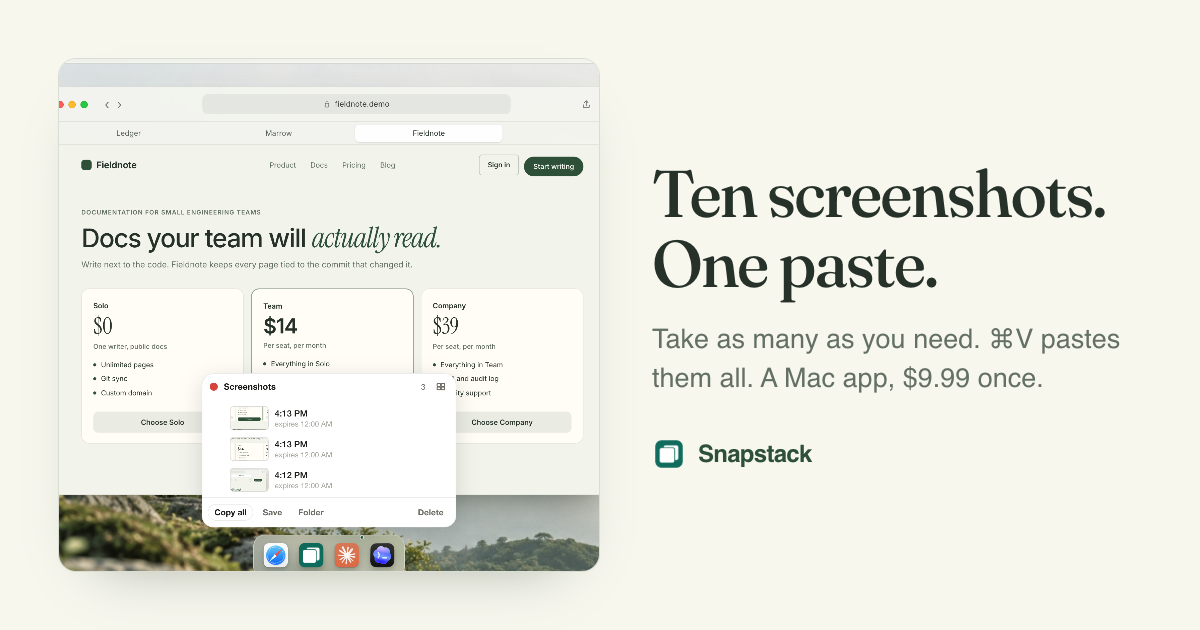
Most screenshots are useful for four minutes. The bug you are showing someone, the reference you are pasting into a prompt, the receipt you are forwarding. macOS takes them well. It just never gets rid of them, which is how my Desktop ended up with 758 of them.Snapstack keeps the shortcuts where your fingers already are. ⌘⇧1 takes the whole screen, ⌘⇧2 takes a region, ⌘⇧2 then Space takes a window. Nothing lands on the Desktop. Everything collects in a small tray in the menu bar.One ⌘V pastes the whole set. If you took three screenshots of three different problems, all three land in the prompt, the message or the doc together, in the order you took them. You write one note instead of three.At the end of the day, the ones you did not save expire. That is the default. You can pick one hour, 24, 48 or 72 hours, on quit, or manual only. Save a screenshot and it moves to ~/Pictures/Snapstack Keeps/, where nothing ever expires it.If a screenshot needs to outlive the day, drop it onto another one on Canvas, name the pile, and the pile stays. For the mess you already have, Import brings your Desktop in with a deadline on each file, so you sort it once.Nothing leaves your Mac except a license check and an update check. macOS 13 or later, Apple silicon or Intel.$9.99, one payment, lifetime license, free updates. Refund within 7 days for any reason, or within 30 days if it does not work on your Mac.
Comments (0)
No comments yet. Be the first to comment!
Related Products

Lynxify.me
360-degree feedback software for small teams

ThinkSpatial

Free Knitting Calculators: Gauge, Decrease & Yarn Tools (AI-Enhanced) | StitchMa
Bookmark AI
Browser extension and dashboard to auto-tag and AI-search saved YouTube videos

IdeaGrit
pressure-tests your idea and helps you commit to the right hard thing.

RentalReady — Turnover Tracker
Turnover checklist and inspection tracker for short-term rental hosts.